
Photo Frame & Collage Maker
Video Recorder & Photo CollagePhotography
4.81.05K Reviews
- Version
- 2.8.1
- Installs
- 10.00M
- Age Rating
- Everyone
Screenshots

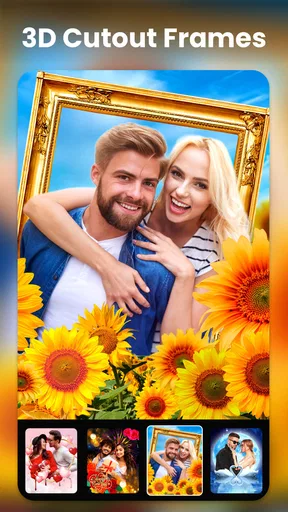
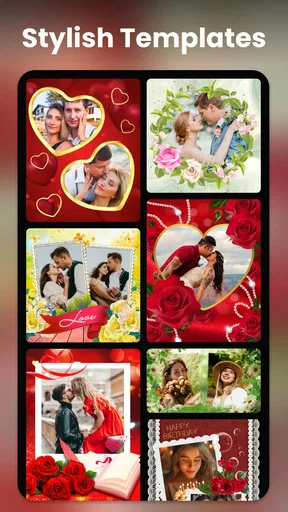
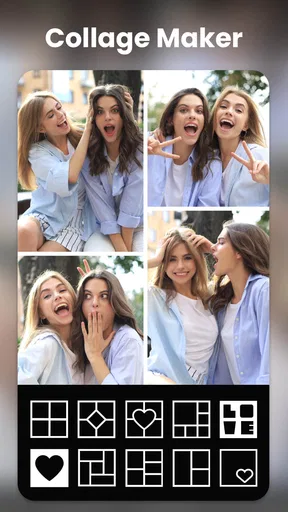

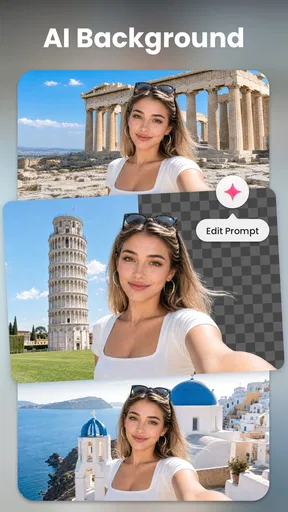

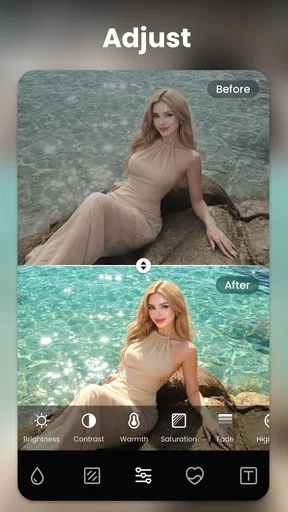
Our Review of Photo Frame & Collage Maker
 Analysis by Appyee
I usually judge a photo editor by how quickly it helps me turn a few ordinary pictures into something I would actually share. Photo Frame & Collage Maker takes that practical route rather than trying to replace a full professional editing suite. It is a free photography app from Video Recorder & Photo Collage, built around framed pictures, collages, and background changes. After spending time with it, I see its main appeal clearly: it is aimed at people who want a finished-looking image without learning a complicated timeline or a desktop-style editor.
The app has attracted a 4.8 average from around 61 thousand ratings and has passed 10 million installs, so it is not an obscure experiment. That popularity makes sense for casual use. I could imagine opening it after a birthday, a weekend trip, or a family gathering and making one presentable image before the moment loses its freshness. At the same time, its convenience comes with limits. It is better at arranging and decorating photos than at giving careful control over every visual detail.
Where the first few minutes can become frustrating
The most common stumbling point is not the collage idea itself; it is choosing the right starting point. A user who simply wants a single photo with a border may initially feel surrounded by layouts, frames, and background-related choices. I found it easier to decide on the finished shape first: one framed image, a multi-photo collage, or a picture with a changed background. That small decision prevents unnecessary tapping through tools that do not belong to the job.
The large collection of layouts is useful, but abundance can slow down a quick project. The app promotes more than 1000 layouts, and that range is valuable when I want a particular arrangement, yet it can also make browsing feel less direct than using a basic gallery editor. My practical advice is to start with the number of photos you actually plan to use. Looking for a layout before selecting a realistic group of images tends to create extra backtracking.
Another point of friction is the difference between a decorative frame and a complete collage design. A frame changes the presentation around a photo, while a collage determines how several images share the canvas. Those two goals can look similar in a preview, but they lead to different editing decisions. For a simple greeting image, I prefer starting with a frame. For a travel recap or a group of family photos, I start with a collage and only then consider decoration.
The best results come from treating the app as a quick composition tool, not as a full photo-retouching workstation. That expectation matters. If I need precise skin retouching, detailed color correction, layers, or careful typography, I would choose a more specialized editor. Here, the strength is getting several images into a coherent visual arrangement with less effort.
Choosing photos without creating extra work
Photo selection has a larger effect on the final result than many first-time users expect. Images with very different brightness levels can make a collage feel uneven, even when the layout is attractive. Before importing anything, I usually pick photos from the same event and remove obvious duplicates. A set of similarly lit pictures gives the frame or collage a more intentional appearance.
Portrait and landscape images also deserve attention. A layout that looks balanced with horizontal pictures may crop faces when filled with vertical shots. I do not assume that every cell will preserve the entire original image. Instead, I check each preview and reposition the picture when the subject is too close to an edge. This is particularly important for group photos, where an automatic crop can remove someone standing at the side.
For social sharing, I keep the main subject away from the extreme corners. Decorative edges and narrow cells leave less room for mistakes, and a face near the border is more likely to feel cramped. This is a simple workflow improvement, but it saves time because I can select suitable pictures before experimenting with layouts.
What the background tools are best suited to
The background-changing side of the app is more appealing when the original surroundings are distracting or when I want a playful themed image. I would use it for a profile-style picture, a simple announcement, or a creative post where the background is part of the joke or mood. I would not expect it to replace a careful professional cutout workflow in every situation.
Hair, transparent objects, plants, and busy outlines are difficult subjects for any automated background process. When the edge matters, I inspect it at a larger view instead of trusting a small thumbnail. If the result looks slightly artificial, a simpler frame or a plain background can be more convincing than an ambitious replacement. That is one of the app’s important trade-offs: it can make an image more striking quickly, but a dramatic effect is not automatically a more natural one.
Setup checks that prevent avoidable problems
Photo Frame & Collage Maker is free to install and is rated for Everyone, which makes it approachable for a broad household audience. It runs on Android 8.0 or later, and the current version is 2.8.1. Before starting a project, I would check the device software and make sure the photos I want are visible in the system gallery. A missing image is often a gallery organization issue rather than an editing failure.
I also recommend beginning with a small test project. Select two or three pictures, try one layout, adjust the crop, and check the result before building a large collage. This reveals whether the chosen images are suitable and gives me a chance to understand the controls without investing time in a complicated design. It is especially helpful on an older phone, where a large group of high-resolution photos may feel less responsive.
If the app does not show a recently taken picture, I first check whether the image has finished saving and whether it appears in the phone’s normal photo viewer. I then close and reopen the editor, rather than repeatedly tapping the same import control. If the image is stored in a cloud-only location or a separate folder, moving or saving a local copy can make selection more straightforward. These are general device checks, but they solve many apparent app problems.
Saving space is another sensible preparation step. Collages combine several images into one composition, and the original photographs remain on the device. I do not begin a large project when the phone is nearly full. A lack of storage can interrupt an export or make the final step feel unreliable, even though the design itself is fine. Keeping the original photos until I have checked the finished image is also good practice.
The app includes in-app purchases priced from $8.99 to $9.99 per item. Since the basic app is free, I would explore the free workflow first and decide whether the available tools already cover my needs. This avoids paying before I know whether the editing style suits me. It also helps separate a genuine technical issue from a feature that is simply part of a paid option.
A setup routine I actually find useful
I choose the purpose of the image before opening the layout browser: a single framed photo, a memory collage, or a background-focused design.
I select a small group of photos with similar lighting and check that faces or important objects are not already cut off.
I test the composition with the least decorative version first, then add a frame or themed treatment only if the image still feels clear.
I review the preview at normal viewing size, because an effect that looks attractive when zoomed in can become distracting when the complete image is visible.
I save or export only after checking the edges, the crop of each cell, and the readability of any visual message.
This routine may sound slower than immediately choosing a colorful template, but it is faster overall. The biggest time loss in a collage app is usually rebuilding a design after discovering that the photos do not fit the selected arrangement.
Recovering a workflow when the result goes wrong
When a collage looks unbalanced, I do not immediately blame the layout. I first look at the individual cells. One oversized face, a bright sky beside a dark indoor shot, or a subject facing out of the composition can make a good arrangement feel wrong. Replacing one image may improve the result more than changing the entire template.
If a photo appears cropped incorrectly, I reposition it before abandoning the design. The important detail is often near an edge, and a small adjustment can bring it back into view. If the cell is simply too narrow for that picture, I choose a different layout rather than forcing the image into a space it cannot naturally occupy. This is a useful trade-off: a less exciting template with complete subjects usually looks better than a fashionable layout that cuts people in half.
For a frame project that feels empty, I add visual interest through the photo choice rather than piling on decorations. A close-up, a clear subject, or a picture with a strong color can make a plain frame work. Conversely, if the image already contains many colors, a simpler border may prevent the finished result from becoming noisy. The app gives me plenty of ways to decorate, but restraint is often the more advanced choice.
Background edits deserve a separate recovery strategy. If the edge around a person looks rough, I try a less complicated background and compare the overall impression. A plain or softly colored setting can hide minor imperfections better than a detailed scene. I also avoid using a background change when the original setting communicates important context, such as a landmark or a meaningful family location. Not every photo benefits from being separated from its surroundings.
When an edit appears to disappear, I make sure I have completed the current adjustment before navigating away and then reopen the project if it remains available in the app’s workflow. I avoid rapidly switching between tools while an image is still updating. If the whole app becomes unresponsive, closing it and trying a smaller project is a reasonable general recovery step. I would not repeatedly recreate a large collage until I know whether the issue is tied to the number or size of the selected photos.
It is also worth checking the exported image outside the editor. A preview inside an app can look different from the final file when viewed in the phone gallery or shared elsewhere. I zoom out, inspect the full composition, and look closely at faces and borders. If the image is intended for a profile picture or a square post, I check it in that shape rather than judging it only in the editor’s working view.
A realistic everyday example
Imagine returning from a child’s birthday with several phone pictures: a cake, a group portrait, a close-up of the decorations, and a candid moment. I would not put all of them into the first layout I see. I would choose the group portrait as the anchor, add two supporting images, and select a design that leaves enough room around faces. A modest frame could give the result a finished look without competing with the cake colors.
If the group portrait has a cluttered background, I would test the background tool on that picture alone rather than applying it to every image. If the separation looks unnatural around hair or small objects, I would keep the original background and use the collage arrangement to improve the presentation. The final image would be more believable, and I would avoid spending time fixing an effect that was never necessary.
For sharing with relatives, I would inspect the smallest details before sending it. A decorative border should not hide a person, and a crop should not remove the birthday message from the cake. This is where the app feels most useful to me: it can turn a loose set of casual photos into one easy-to-send memory without demanding a long editing session.
When the app is not the cause
Some disappointing results come from the source photos rather than the editor. A blurry picture will remain blurry inside a polished frame. A dark indoor image may look even more noticeable beside bright outdoor shots. I solve this by grouping photos with comparable lighting or by making the strongest image the visual focus and using weaker pictures as smaller supporting elements.
Storage and device performance can also be misleading. If importing takes a long time, I reduce the number of selected pictures and try again. If only one folder behaves strangely, I check that folder through the regular gallery. If other apps also struggle to open or save images, the wider phone environment deserves attention before I conclude that this editor is at fault.
Sharing failures should be approached in the same way. I first confirm that the finished image exists in the gallery and can be opened outside the editor. If it opens normally but will not send, I try the share process from the gallery or check the receiving app. That simple separation tells me whether the problem is creating the file or passing it to another service.
There is also a difference between a missing option and a malfunction. Because the app includes paid items, a tool may be presented differently from the basic editing controls. I would read the on-screen wording carefully before assuming that a button is broken. Starting with the free features gives a clearer picture of what the app can do without confusing optional extras with essential operation.
Compared with a standard phone gallery editor, this app is more focused on presentation. A gallery editor is usually quicker for rotating, trimming, or making a basic light adjustment. Photo Frame & Collage Maker becomes the better choice when I need several images on one canvas, a decorative border, or a more noticeable visual treatment. Compared with a professional design app, it is easier to approach but less suitable for exact placement, layered compositions, and repeatable brand-style work.
That comparison helps define the audience. I would recommend it to someone making family collages, seasonal greetings, simple memory boards, or playful social images. I would skip it for detailed product photography, precise marketing graphics, or edits that depend on consistent measurements and advanced retouching. People who dislike browsing many templates may also prefer the simpler controls already built into their phone.
My practical verdict after using it
Photo Frame & Collage Maker succeeds because it keeps the goal visible: arrange photos, give them a frame, and create something shareable without a steep learning curve. Its high user rating and broad install base reflect that straightforward appeal, while the free entry point makes it easy to test. The developer, Video Recorder & Photo Collage, has positioned it as a convenient photography tool rather than a replacement for every kind of editor.
My strongest advice is to use it deliberately. Pick the image purpose first, choose photos that belong together, and treat background replacement as an option rather than an automatic improvement. Check crops before exporting, keep a little storage available, and test a small project when the phone or image collection is giving you trouble. Those habits address most of the practical friction I encountered.
The app is not perfect for users who want deep control, and the number of layouts can make quick decisions less quick. Some background edits may need a careful visual check, particularly around complicated edges. Still, for an everyday user who wants a framed photo or a clean collage with minimal effort, I find it easy to recommend. It is most convincing when used as a fast finishing tool: take ordinary pictures, make a few thoughtful choices, and let the composition do more work than the effects.
With its Everyone age rating, support for Android 8.0 and newer, free installation, and current version 2.8.1, it is accessible to many casual photographers. I would begin with the free tools, build one small collage, and judge the result on the actual phone where it will be viewed. If that first project gives you the balance and simplicity you want, this app can become a handy part of your regular photo routine.
Verdict
Strengths of Photo Frame & Collage Maker
- Offers many frame styles for birthdays, holidays, and everyday photos.
- Collage layouts make it easy to combine several pictures in one design.
- Simple controls let beginners edit photos without much learning.
- Includes decorative stickers, text, and background options.
- Useful for creating shareable posts, cards, and personal keepsakes.
Limitations of Photo Frame & Collage Maker
- Some templates and decorations may require in-app purchases.
- Ads can interrupt editing, especially in the free version.
- Highly detailed collages may take longer to export on older devices.
- Photo quality can vary depending on the selected frame or layout.
- The large number of design choices may feel overwhelming at first.
Other Releases by Video Recorder & Photo Collage
View All
Screen Recorder - AX Recorder
Video Players & Editors4.6
Similar Picks in This Category
View All
Google Photos
Google LLC4.4

Gallery
Google LLC4.2

Picsart AI Photo Editor, Video
PicsArt, Inc.3.9

B612 AI Photo&Video Editor
SNOW Corporation4.1

BeautyPlus-Selfie Photo Editor
PIXOCIAL TECHNOLOGY (SINGAPORE) PTE. LTD.4.5

Remini - AI Photo Enhancer
Bending Spoons4.1
Frequently Asked Questions
What is Photo Frame & Collage Maker used for?
Photo Frame & Collage Maker is a creative photo-editing app designed for combining pictures into collages and decorating them with frames, borders, layouts, stickers, text, and other visual effects. After testing its main tools, I found it useful for preparing social media posts, greeting cards, albums, invitations, and simple personalized images without requiring advanced editing experience.
Is Photo Frame & Collage Maker easy to use for beginners?
Yes, the app is generally beginner-friendly. You can select photos from your device, choose a collage layout or frame, and adjust the images using straightforward editing controls. Most options are easy to understand, although users may need a little time to explore the larger collection of templates, decorations, and adjustment tools before creating polished results efficiently.
Can I use my own photos and customize the collage design?
Yes, Photo Frame & Collage Maker allows you to import personal pictures and arrange them in different layouts. Depending on the selected template, you can usually resize, reposition, rotate, and crop individual images. You can also personalize the project with frame styles, colors, backgrounds, stickers, and captions, making the final design more distinctive than a basic photo grid.
Does Photo Frame & Collage Maker include free features or in-app purchases?
The app typically provides a selection of free layouts, frames, editing tools, and decorative elements, but some advanced designs or premium content may require payment. Advertising may also appear in the free version. Before downloading or subscribing, check the current Google Play or App Store listing carefully, especially the pricing, trial conditions, and whether purchases are one-time or recurring.
Can I save and share collages created with the app?
Yes, completed designs can generally be saved to your device and shared through supported apps such as messaging services, email, and social networks. Export quality can depend on the chosen layout, original photo resolution, and the app’s available settings. For important prints or professional use, review the final image carefully to ensure that cropping, sharpness, and any watermark meet your expectations.
